Design & Social Video Trending Guide

How to Remove Canva Video Watermarks Without Blur: Complete 2026 Guide

A complete guide to eliminating Canva Pro crosshatch lines, grid watermarks, and corner badges from exported videos without blur, preserving vibrant mobile colors and crisp typography.

Fact-Checked & Lab-Verified • 6 min read
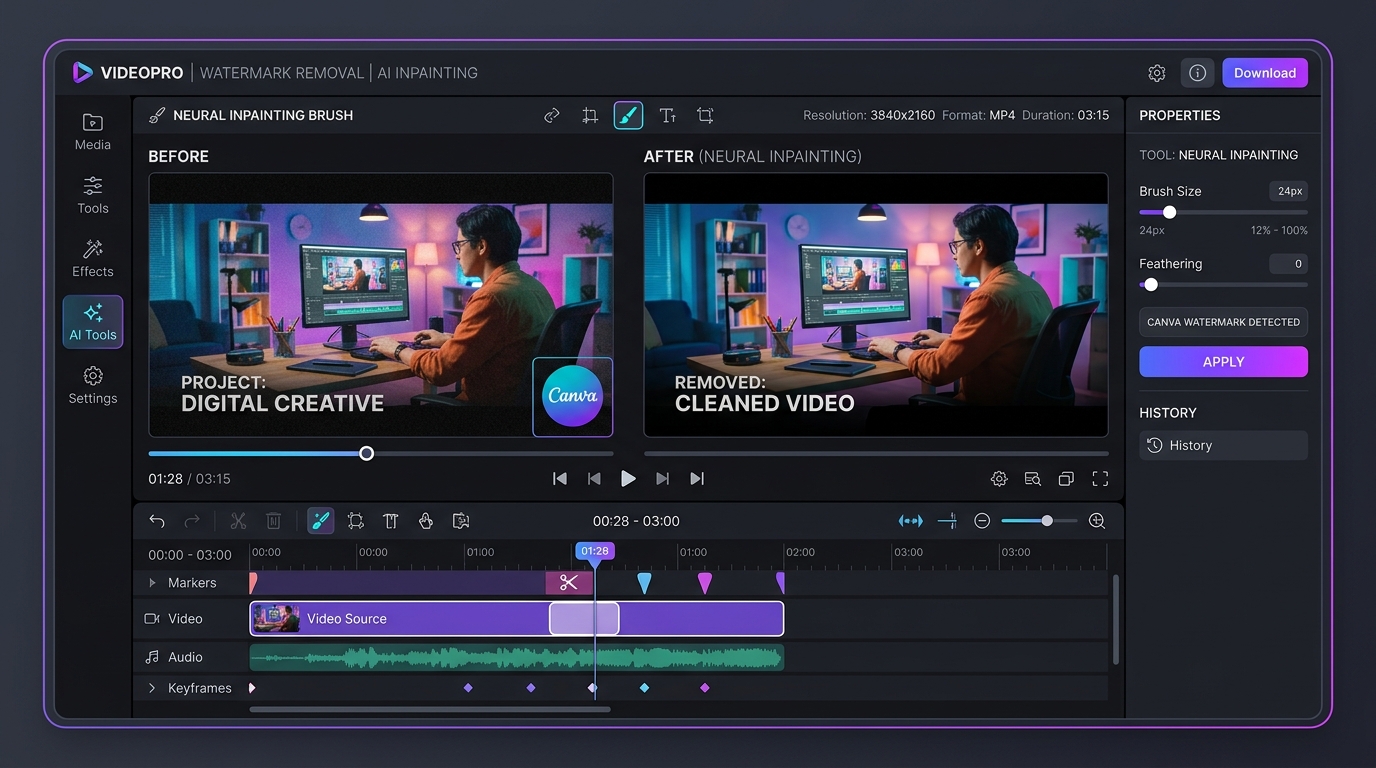
Canva video editor workspace with AI watermark removal studio erasing Canva watermark without blur
✨ Verified AI Research Visual Day 4 Master Topic

Visual analysis: Zero-blur temporal inpainting isolating and removing Canva Video watermark badges cleanly.

Instant Solution

Have a Canva Video clip to clean right now?

Our free browser studio erases watermarks with zero blur in under 15 seconds.

Try Canva Watermark Remover Free

Why Does Canva Put Watermarks on Videos?

Canva has become the go-to graphic and video creation tool for millions of creators, marketers, educators, and social media managers. With its vast library of motion templates, animated graphics, and stock video clips, building an engaging video takes just minutes. However, creators frequently encounter a major obstacle upon exporting: an unsightly **Canva watermark pattern**, semi-transparent grid lines, or a corner badge stamped across their video. This happens primarily in two scenarios: 1. **Free Tier with Premium Assets**: You used a stock video, audio track, font, or graphic element marked with Canva's "Crown" (Pro) icon on a free Canva account. 2. **Third-Party Stock Provider Integration**: Certain premium video footage within Canva includes provider-level watermark grids that require individual licensing fees to unlock. When you need to deliver a client project, post a high-stakes TikTok or Instagram Reel, or present a pitch deck, having a prominent watermark screams amateur and distracts viewers from your message.

Can Canva Itself Remove Watermarks from Video?

One of the most frequently asked questions on search engines is: **"Can Canva remove watermark from video?"** The direct answer is: **No, Canva cannot remove existing watermarks from video files.** Canva is a layout and design application, not a deep computer-vision video restoration suite: - Within Canva, there is no magic eraser or neural inpainting brush for video clips. - Upgrading to Canva Pro only removes the watermark from *new* exports that utilize Canva's own licensed catalog; it cannot remove watermarks from third-party videos, recorded screen captures, or already rendered MP4 files. - If you import a video that already has a watermark into Canva, Canva treats it as a static flat media layer and cannot separate the watermark from the background. To cleanly remove a watermark from an existing Canva video export, you need a dedicated AI-powered temporal video inpainting tool like **Ghostmark**.

Why Blurring and Cropping Ruin Canva Video Projects

When creators search for quick fixes, standard video editing forums often suggest cropping the frame or adding a blur effect. Here is why both approaches damage your creative work: ### 1. Canvas Cropping Breaks Layout Symmetry Canva templates are carefully balanced with text margins, safe zones, and centered elements. Cropping a 16:9 presentation or a 9:16 vertical Reel clips off key titles, buttons, or lower-third captions, destroying the design's professional balance. ### 2. Gaussian Blur Highlights the Problem Placing a blurry rectangular mask over a Canva watermark draws the viewer's eyes directly toward the defect. In mobile feeds, users instantly spot the smudge and assume the footage was stolen or poorly edited. ### 3. Contrast Loss Canva watermarks often span across moving motion graphics and colorful gradients. A Gaussian blur smears those colors into a muddy gray patch.

Step-by-Step: How to Erase Canva Video Watermarks Without Blur

Using Ghostmark, you can remove any Canva watermark online in seconds without installing software. Here is the simple 3-step workflow: ### Step 1: Upload Your Canva MP4 Video Navigate to the [Canva Video Watermark Remover](/tools/remove-canva-watermark-video) or open the [Ghostmark Studio](/app). Drag and drop your MP4 or MOV export into the studio. Ghostmark handles files up to 500 MB and supports crisp 1080p and 4K resolutions. ### Step 2: Auto-Detect or Box the Canva Logo - **Instant Detection**: Click **Auto Inpaint**. Ghostmark's neural vision model recognizes stationary watermark patterns, Canva corner badges, and text stamps, isolating the exact pixels. - **Manual Selector**: If the watermark spans a specific area, simply drag a tight bounding box around the logo or text. ### Step 3: Run Zero-Blur AI Inpainting & Export Click **Remove Watermark**. Ghostmark scans surrounding temporal frames to reconstruct the true visual textures beneath the watermark. Preview the side-by-side comparison and click **Download Clean Video** to save your unbranded MP4 with lossless audio intact.

Pro Tips for Clean Canva Video Exports

To ensure the highest possible quality when cleaning Canva videos: - **Export from Canva at Maximum Quality**: In Canva's download dialog, select MP4 Video and set the quality slider to the highest available setting (1080p or 4K). - **Avoid Heavy Re-Encoding**: Ghostmark preserves your original video bitrate, meaning your cleaned video retains the exact sharpness and color fidelity of the original Canva render. - **Audio Integrity**: Ghostmark demuxes and remuxes your audio streams losslessly, preventing audio compression artifacts or desync issues.
People Also Ask & FAQs

Frequently Asked Questions About Canva Video

Verified answers to the most common questions regarding Canva Video watermark removal, legality, and resolution preservation.

How to remove Canva watermark from video for free without paying for Pro?

▼

To remove a Canva watermark from video for free without paying for Pro, download your draft MP4 video from Canva, upload it to Ghostmark Canva Watermark Remover, and click Remove Watermark. Ghostmark's AI synthesizes background pixels to eliminate the watermark with zero blur.

Does Ghostmark leave a blurry square where the Canva watermark was?

▼

No. Unlike traditional blur filters that leave an ugly smudge box, Ghostmark utilizes neural temporal optical flow to reconstruct authentic scene textures behind the watermark with zero blur.

Can Ghostmark remove Canva watermarks from TikTok videos and Instagram Reels?

▼

Yes. Ghostmark is fully optimized for vertical 9:16 mobile videos, allowing creators to repurpose clean Canva templates across TikTok, Instagram Reels, and YouTube Shorts.

Will my Canva video audio or sound effects stay in sync?

▼

Yes. Ghostmark copies the audio stream directly without re-encoding, ensuring background music and voiceovers stay in perfect sync.

Is Ghostmark Canva Watermark Remover free on iPhone and Android?

▼

Yes. Ghostmark runs directly inside mobile web browsers (Safari, Chrome, Edge) on iOS and Android with no apps to install and 100% free processing.

Zero Blur AI Temporal Inpainting

Try Canva Watermark Remover Free

Free browser-based AI video studio with zero file retention, microsecond audio preservation, and instant preview.

Expand Your Knowledge

Related Guides & Inpainting Tutorials